





100 Days of Cloud (Azure Edition)
Day 24 of Cloud (Azure Edition)
AZURE
Nyan
12/17/2025
Day 24: Securing Virtual Machine SSH Access
Task: The Nautilus DevOps team needs to set up a new Virtual Machine (VM) on the Azure cloud that can be accessed securely from their landing host (azure-client). Follow the steps below to complete this task:
Create an SSH Key: On the azure-client host, check if an SSH key already exists. If it doesn’t exist, create a new SSH key on the azure-client host that will be used for password-less SSH access.
Create a Virtual Machine: Use the Azure Portal or Azure CLI to create a new Virtual Machine named datacenter-vm in the westus region. Set the VM size to Standard_B1s and configure the VM with SSH access for the azureuser account using the newly created SSH key.
Configure SSH Access: Ensure that the SSH key from the azure-client host is added to the azureuser account on nautilus-vm, enabling secure, password-less SSH access from the azure-client host.
Verify Connectivity: Test the connection from azure-client to nautilus-vm using SSH to confirm that password-less access has been set up correctly.
Complete these tasks entirely within the Azure Portal or Azure CLI.
Use the below given Azure Credentials: (You can run the showcreds command on azure-client host to retrieve these credentials)
Day 24 of 100 Days of Cloud (Azure Edition) : Solution
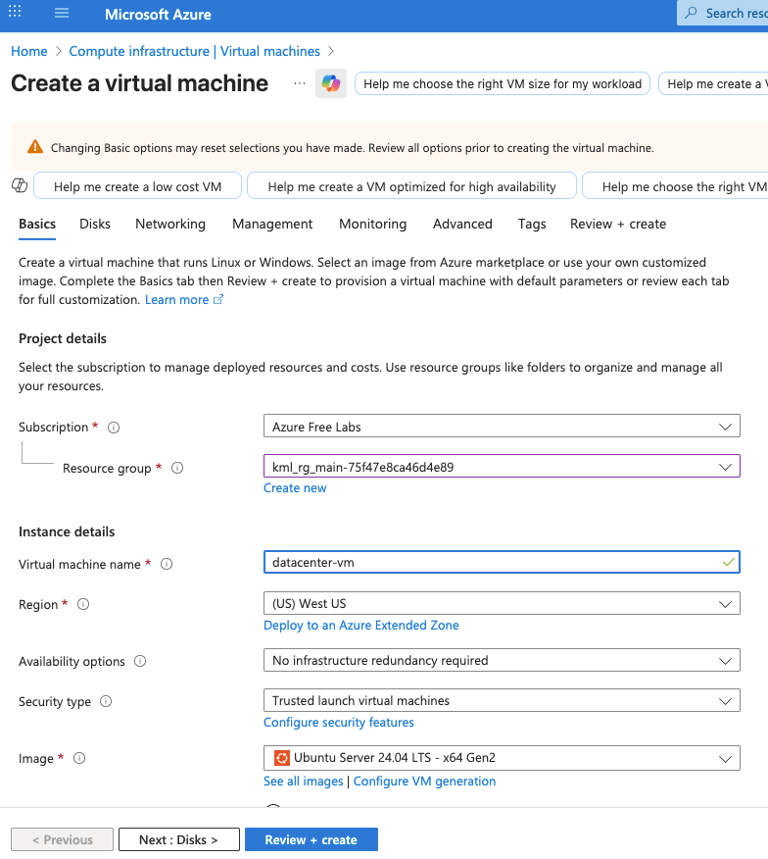
Create a virtual machine named as datacenter-vm and choose the image as Ubuntu Server 24.04 LTS.
Choose VM size as Standard B1s.
Day 24 of 100 Days of Cloud (Azure Edition) : Cheers


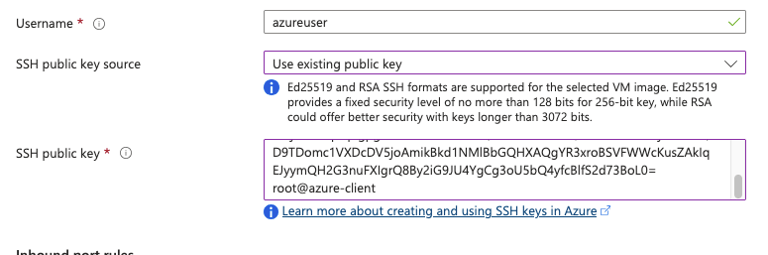
Provide the username as azureuser for the VM.
Choose SSH public key source from jumphost and create the ssh key in jumphost via ssh-keygen cmd.
Insert the public key from jumphost in SSH Public Key.
In Disk tab, choose standard SSD for harddisk type.
Leave the other settings as default and click Review + Create Button to create the VM.

To verify the ssh password-less access from jumphost to azurevm, ssh into the vm by using
ssh azureuser@publicip

