




100 Days of Cloud (Azure Edition)
Day 13 of Cloud (Azure Edition)
AZURE
Nyan
12/6/2025
Day 13: SSH into an Azure Virtual Machine
Task: The Nautilus DevOps team is working on setting up secure SSH access for their virtual machines in Azure. One of the requirements is to add the SSH public key of the root user from the Azure client host (landing host) to the devops-vm Azure VM's authorized_keys file. This ensures secure and password-less SSH access to the VM.
Task Details:
1) VM Details:
The VM is named devops-vm and is running in the West US region. The default SSH user is azureuser — use this user to connect to the VM.
You need to add the root user's SSH public key from the Azure client host to the authorized_keys file of the VM's root user.
The SSH public key of the root user on the Azure client host is located at /root/.ssh/id_rsa.pub.
2) Public Key Addition:
Copy the public key located at /root/.ssh/id_rsa.pub on the Azure client host to the authorized_keys file of the root user on devops-vm.
Ensure that the proper permissions for the .ssh folder and authorized_keys file are set on the VM.
3) Verification:
After adding the public key, make sure that you are able to SSH into the devops-vm VM as the root user from the Azure client host without needing a password.
Important Notes:
Ensure that the VM is up and running before attempting to SSH.
You may need to adjust the firewall or security group rules for the VM to allow SSH access. Use the following Azure credentials to access the Azure portal:
Use below given Azure Credentials: (You can run the `showcreds` command on the `azure-client` host to retrieve these credentials)
Day 13 of 100 Days of Cloud (Azure Edition) : Solution
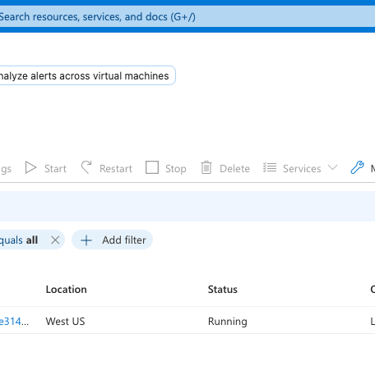
Try to find out the public ip of the existing VM.

Day 13 of 100 Days of Cloud (Azure Edition) : Cheers


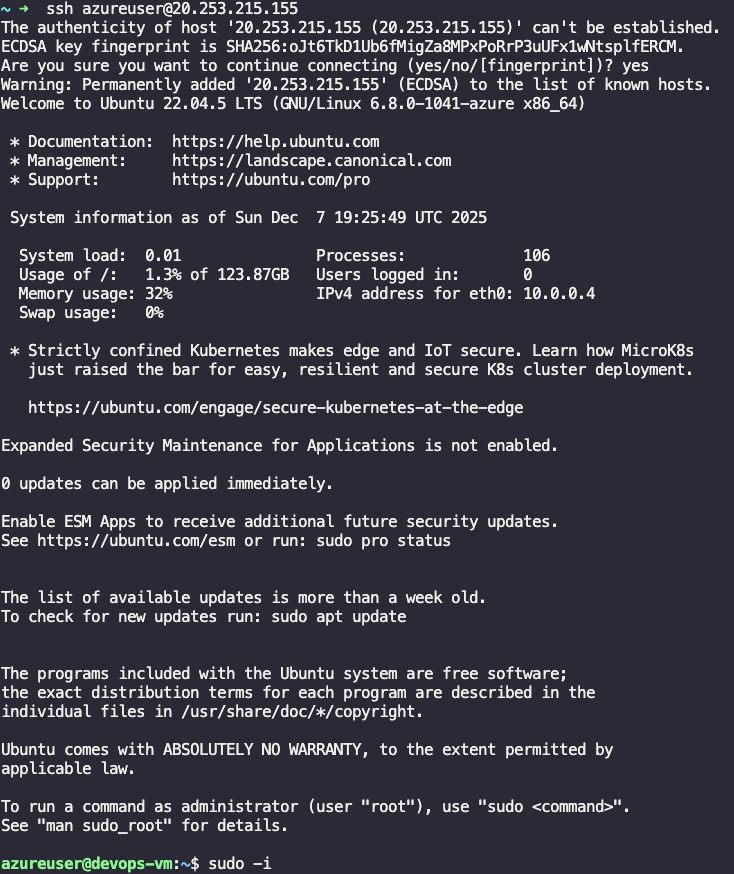
SSH into devops-vm as azureuser.
Become root user by using sudo -i.
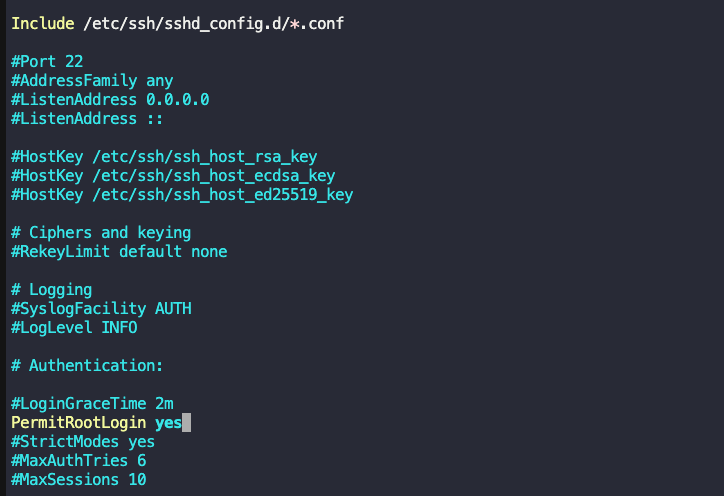
Try to edit the ssh config file on devops-vm by using vi /etc/ssh/sshd_config.
Find this line and change to PermitRootLogin yes.
Try to view the public key file by using sudo cat /root/.ssh/id_rsa.pub

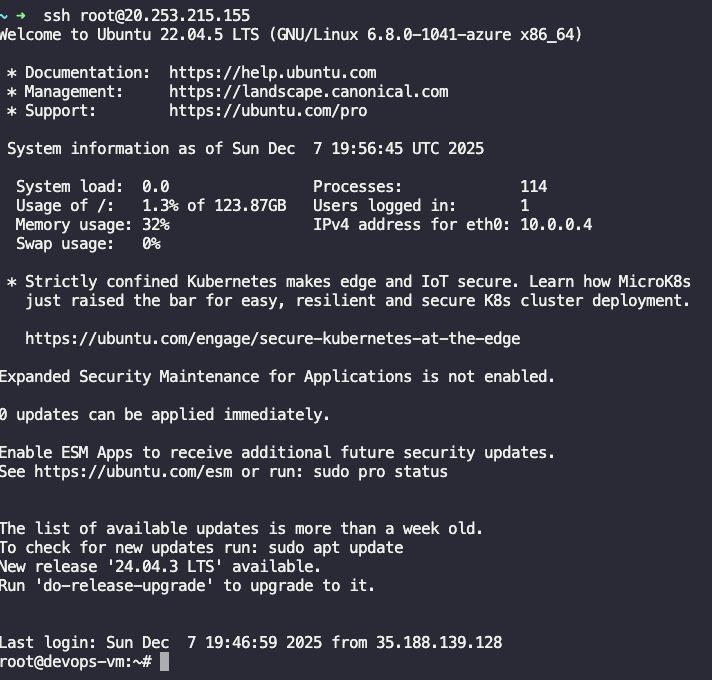
SSH into the devops-vm by using the root user and it should login without password.
Edit the authorized_keys file in devops-vm by using vi /root/.ssh/authorized_keys and paste the public key from jumphost which described in above.